
Finding your deals: List, Board, Calendar, and Archive
Done-Deal shows your pipeline three ways: as a List, as a Board (Kanban), and as a Calendar. A fourth tab, Archive, holds your closed deals. A tab bar at the top of each one lets you switch between all four. This article covers the List view, the Archive, and how they connect.
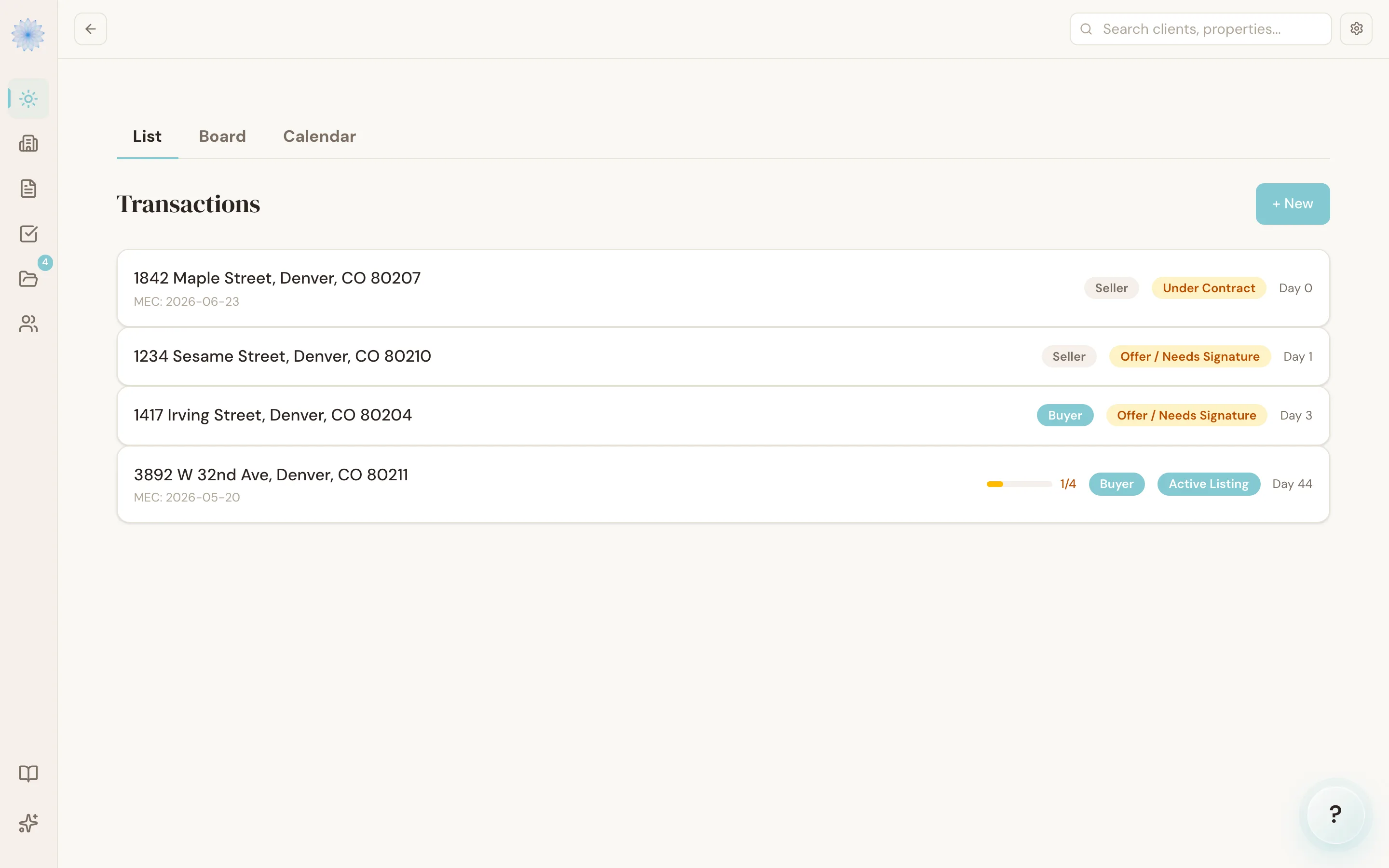
The List view
The List tab shows every active transaction as a row: the buyer or seller name with the property address below it (or No address yet), mutual execution of contract (MEC) date, a Buyer/Seller badge, a stage badge, a task-completion progress bar, and how many days the transaction has been open. Click a row to open that transaction. If your brokerage has Next step turned on, rows can also say what to do next (see Next step on each deal below).
Note: If you've bookmarked or typed
/deals, Done-Deal redirects you straight to this list — "Deals" and the transaction List are the same pipeline, viewed the same way.
Next step on each deal
Note: Next step is being turned on one brokerage at a time. If your rows show the MEC date and a colored task bar, your brokerage does not have it yet, and the List view works as described above.
If your brokerage has it turned on, rows on the List tab say what to do next.
- Deals under contract show Next: and the next deadline to act on, for example Next: Write the Inspection Objection. A pill says when it is due: Due today, Due tomorrow, Due in 2 days, a date such as Due Dec 4th, or Overdue by 2 days. Overdue is red; due within 3 days is amber.
- A red 2 past due pill counts the other open deadlines whose date has passed. A deadline more than 14 days overdue is counted there but is never shown as the next step. If every open deadline is that old, the row says Next: Update the past-due deadlines.
- Listings in Pre-Listing or Active Listing, and buyer deals in Buyer agency, show Next: and their next open task, if they have one. A task with a due date gets a grey pill. An active listing with no open listing task, no offer and no contract dates says Next: Find a buyer. Other deals keep the MEC date line.
- In place of the colored task bar, a computer shows a five-step bar for deals under contract (Contract, Inspection, Financing & Appraisal, Title, Closing) and a grey count such as 9 of 46 tasks. Skipped and not applicable tasks count as done. The bar and the count are hidden on a phone.
Needs me first
Next to Sort by, click Needs me first. Deals with a next step come first, the soonest due date at the top. Deals with only past-due deadlines come next. All other deals follow in client last-name order. Deals not under contract keep that order: their Next line does not move them.
On the deal page
For a deal in Under Contract or Pre-Closing:
- The top of the deal shows the same five steps with their names. Done steps are teal, the current step is dark, and later steps are grey.
- A Next step card under it names the deadline and when it is due, for example "Inspection Objection is due in 2 days, on Friday, Nov 13th." It can have up to three buttons: one that starts the form for that deadline (such as Write the objection or Write the resolution), Extend this deadline (an Amend/Extend, AE41) and Start a Notice to Terminate. Click See it in the deadlines to jump to that deadline.
- When every open deadline is more than 14 days overdue, the card says how many are past due and links to Update them in the deadlines.
- When the deal has no deadlines yet, the card says "Add this deal's deadlines to see the next step." If you can set the deal dates, those first words are a link to Set the deal dates.
- Upcoming Deadlines shows a timeline: Past due, Now (the card's deadline, with the same buttons) and Ahead. Click Show 3 done (the number varies) to see finished and not applicable deadlines. Each deadline still has Update, and the calendar is still right below.
You see a form button only when you can already start that form on this deal. Seller-side deals never get the forms the buyer signs (the objection, the title objection, the inspection termination or the Notice to Terminate). No button changes the deal's stage: starting or signing a Notice to Terminate here does not move the deal to Terminated by itself. Change the stage yourself when it is done.
Switching views
Use the tab bar (List / Board / Calendar / Archive) to move between:
- List — the row-based view described above, best for scanning many deals at once.
- Board — a drag-and-drop Kanban view organized by stage.
- Calendar — every deadline and scheduled task across your transactions, by date.
- Archive — your closed deals and deals kept as history (see below).
List, Board and Calendar show the same open transactions — pick whichever view fits what you're trying to do.
The Archive
The Archive tab lists your own closed deals and the deals kept as history. No deadlines or Reme reminders run on them. A deal is here when:
- CTM eContracts (CTM) says it is Closed, Expired, Withdrawn or Cancelled;
- you brought it over from CTM and its dates had already passed;
- you clicked Move all to Archive on Import from CTM (these are marked Filed from Imports); or
- you archived it yourself.
Deals are listed newest closing date first, 50 a page. To find one:
- Type an address or a client name in the search box.
- Click Search.
- Click the deal to open it.
Each row shows the address, the client, the side, the closing date, a status (for example Closed or Closing date passed in CTM), and how many documents are on the deal. An archived deal still has its parties, tasks and documents. If CTM still shows the deal as open, its page has Still open? Bring it live from Imports.
Deals you moved with Move all to Archive show a line at the top, for example Filed from Imports on Nov 10th (156) · Move all back. Click Move all back to return the deals you moved last to Import from CTM. To return one deal, open it and click Move back to Imports.
FAQ
Why does my deal say "2 past due"?
Two open deadlines on that deal, other than the one after Next:, have dates that have passed and are not marked done. Open the deal, find them under Past due in Upcoming Deadlines, and click Update on each one to mark it done or change its date. This only shows if your brokerage has Next step turned on.
Which view should I use day-to-day?
There's no single right answer. Many agents check the Board to see what's moving and stalling, and switch to List when they need to scan every open deal at once, or Calendar when planning the week.
Where are my closed deals?
Click Deals, then the Archive tab. Deals in the Closed stage still show in the List and Board with a Closed badge or column. Archived transactions show only on the Archive tab — see Trash and recovery for how archiving differs from the file-level trash.
Why isn't a deal from CTM in the Archive?
Deals from CTM that are still Active or Under Contract there, with dates that have not passed (or no dates at all), wait on the Import from CTM page until you bring them live. Only deals that are finished show in the Archive.
Related articles
Still stuck?
Email support@done-deal.co and a real person will get back to you — usually the same business day.