
Sending a contract for signature
Once a contract is ready, you send it out for signature right from the contract editor. This covers the built-in signing flow — the fastest way to get a CBS1 or any other Done-Deal form signed without leaving the app.
Before you can send
Done-Deal runs a set of checks before it lets a contract go out:
- Every CREC-required field for that form must be filled in. If something is missing, you'll get a list of the exact fields to fix.
- For a CBS1, CP41, or AE41 that has been modified (sections deleted or fields changed since the original), you must confirm you've explained those changes to your client before Done-Deal will send it — this satisfies CREC §7.2.J.
- The contract must be on a deal. Done-Deal asks for the deal when you start a form, and a draft without one asks when you open it; see Starting a form: picking its deal. If a contract still reaches the Send for Signature screen without a deal, the screen asks Which deal is this for? Pick the deal, or click Create a new deal from this contract. Your edits are saved, the page reloads, and then you click Send for Signature again.
- Demo contracts can never be sent for a real, legally binding signature.
- On a buyer deal, a Contract to Buy and Sell needs a signed buyer agency agreement (the Exclusive Right to Buy) on file, as the NAR settlement requires. Done-Deal counts it as on file when you upload the signed copy on the deal's Documents tab (file it as Exclusive Right to Buy Listing Contract and say it is signed), or when you e-sign the Exclusive Right-to-Buy in Done-Deal. If the agreement was signed somewhere else, click I have a signed buyer agency agreement under that check in the Preflight Check panel, enter the date it was signed, and click Save and re-check. Only the deal's agent (or a co-agent) can record the date; a coordinator uploads the signed copy instead. No agreement yet? Click Create the buyer agency agreement in the red box on the send screen. It starts an Exclusive Right-to-Buy on the same deal. Once a signed agreement is on file (any of the three ways above), the deal page can say Your buyer agency agreement is signed. Next: send your offer for signature. with an Open the offer button.
If any of these checks fail, sending is blocked until you fix the issue. The send screen lists the first few reasons and says how many more there are. To see every one, close the send screen and click Run Preflight Check in the side panel.
On a computer, the Preflight Check lists only boxes you can fill on the form. Signature lines are not listed: your clients sign those. Click Go to field next to a problem to jump to the box that fixes it. A check about the whole deal, such as a party with no email, has no Go to field.
Adding recipients
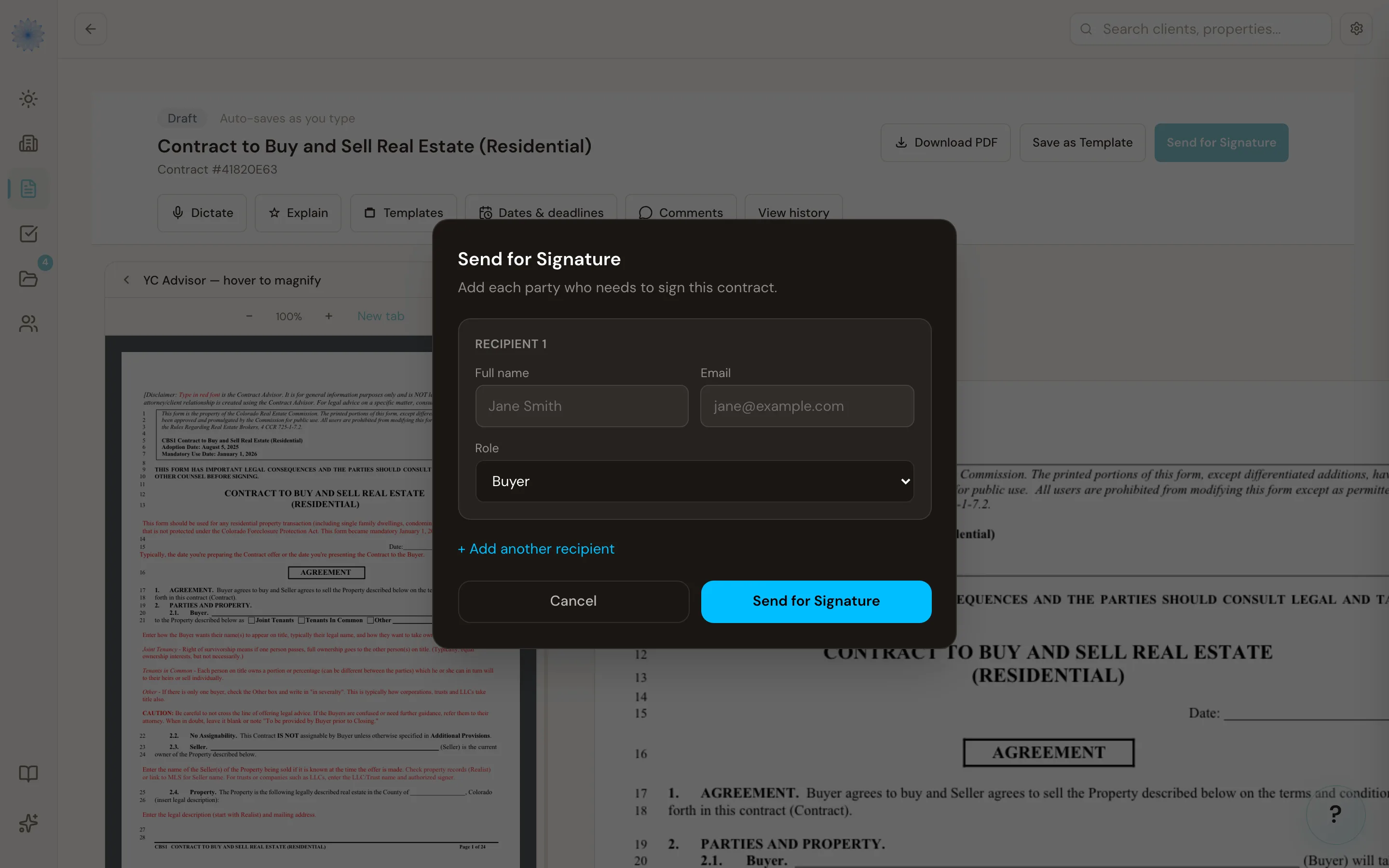
Click Send for Signature on the contract to open the send screen. Before you run any check, the Preflight Check box under the form also has a Send for Signature button: it opens the same screen. If the contract is on a deal, the screen already lists your clients from the deal's parties (the sellers on a listing, the buyers on a purchase), with their names and emails. If you represent both the buyer and the seller on the deal, the screen lists the buyers and then the sellers, but only the side that signs this form (a listing agreement lists only the sellers). A party with no email on file is still listed with the email box empty: type their email (or remove the row) before you send. Check them, then add anyone else who needs to sign:
- Enter their Full name and Email.
- Choose their Role — Buyer, Seller, Buyer Agent, Seller Agent, or Other.
- Click + Add another recipient to add more parties, or Remove to take one off.
- Click Send for Signature to send.
You need at least one recipient with a name and email before you can send.
Note: You (the sending agent) are added as a signing party automatically, based on which side of the transaction you're on — you don't need to add yourself to the recipient list unless you want to override that.
Amendments and counter-proposals
If you're sending an amendment or counter-proposal (a contract created from an existing one), Done-Deal can carry forward the buyer and seller who already signed the original contract, so you don't have to retype them. The original contract must be fully signed first — Done-Deal pulls its signed parties automatically. For the very first CBS1 on a transaction, you always enter recipients by hand.
What happens after you send
- The contract's status changes to Sent.
- Every party — including you — receives an email with a unique, one-time link to review and sign the contract. See The signing experience for what that looks like on their end.
- Each signing link is valid for 14 days. If a link expires before someone signs, email support@done-deal.co and we'll help you get them a new one.
- You get a notification once the contract has been sent.
Sending a signed offer to the listing agent
An offer goes to your client and you first, and to the listing agent only after you have signed:
- Click Send for Signature and send the offer to your buyers. You sign too. The message after the send, and the email you get when your buyers have signed, both point you to the deal page for the next step.
- When everyone on your side has signed, open the deal. If your brokerage has it on, the top of the deal's Overview card says Your buyer has signed. You can now send the offer to the listing agent.
- Click View signed PDF to check the signed copy, then click Send to the listing agent's name.
While an offer is still a draft, the contract page shows only a small link, Share the unsigned draft with the other agent. Use it only when you mean to share an unsigned draft: its button reads Send unsigned draft. Once the offer is out, the Cooperating Agent box stays on the contract page as a second way to send it. Its button reads Send signed offer to the agent's name when your side has signed, and says (not signed yet) when it has not.
When the listing agent adds their CTM address
If no CTM address is on file for the listing agent, the email with your signed offer asks them for it with an Add your CTM address link. If your brokerage has it on, the signed offer you already sent is filed into their CTM deal as soon as they paste the address. You do not send it again, and they get no second email. A card on your Home says "Greg's CTM address is in. The offer was filed into their CTM deal." If it could not be filed (for example, it is over CTM's 8 MB limit), the card says why and what to do, usually to send it again with the offer's Send button. If the deal has more than one signed offer, nothing is filed: send the right one again with its Send button and it goes to their CTM.
Cancelling a send
Sent the wrong contract, or sent it to the wrong person? You can take it back while it is still waiting for signatures.
- Open the contract, or the deal's Documents tab. A form out for signature reads Sent for signature there.
- Click Cancel this send.
- Click Cancel the send to confirm, or Keep it to leave it out for signature.
What happens when you cancel:
- The contract's status changes to Voided. Every signing link for it stops working right away.
- Everyone on it gets an email saying you cancelled it and that the link no longer works, including anyone who already signed. You are not emailed yourself.
- The cancel is recorded in the deal's audit trail, with who cancelled it and when.
If the form went out in a package with other forms, Done-Deal lists them first. Cancelling cancels every form in that package that is still waiting for signatures. A form everyone already signed stays signed.
Sending a corrected copy
- On the cancelled contract, click Copy this contract. Done-Deal opens a new draft of the same form with the details filled in and the signatures cleared.
- Make your changes.
- Click Send for Signature. Everyone gets a new email with a new link.
Note: Only the people who can send a contract on the deal can cancel its send. Once everyone has signed, the contract is executed and can no longer be cancelled: change it with an amendment instead. An offer that is waiting on the seller is closed with Close this offer.
Note: Built-in e-signature is one of two ways to collect a signature on a document in Done-Deal. If you'd rather route a document through your own DocuSign account, see The DocuSign integration.
FAQ
Can I see who still needs to sign?
Yes. The contract shows a Signatures panel with every recipient's status — signed (with the date, a masked IP address, and browser) or awaiting signature (with the link's expiration date).
Do all recipients have to sign in a specific order?
No — Done-Deal doesn't enforce a signing order for the built-in flow. Every recipient gets their link at the same time and can sign whenever they're ready.
I sent a contract to the wrong person. What do I do?
Open the contract and click Cancel this send. The signing links stop working and everyone on it gets an email. Then click Copy this contract, fix the recipients and send the copy.
Does sending a contract count as it being executed?
No. A contract is only marked executed once every required party has signed. Sending just starts the process.
Related articles
Still stuck?
Email support@done-deal.co and a real person will get back to you — usually the same business day.