
Finding and classifying documents
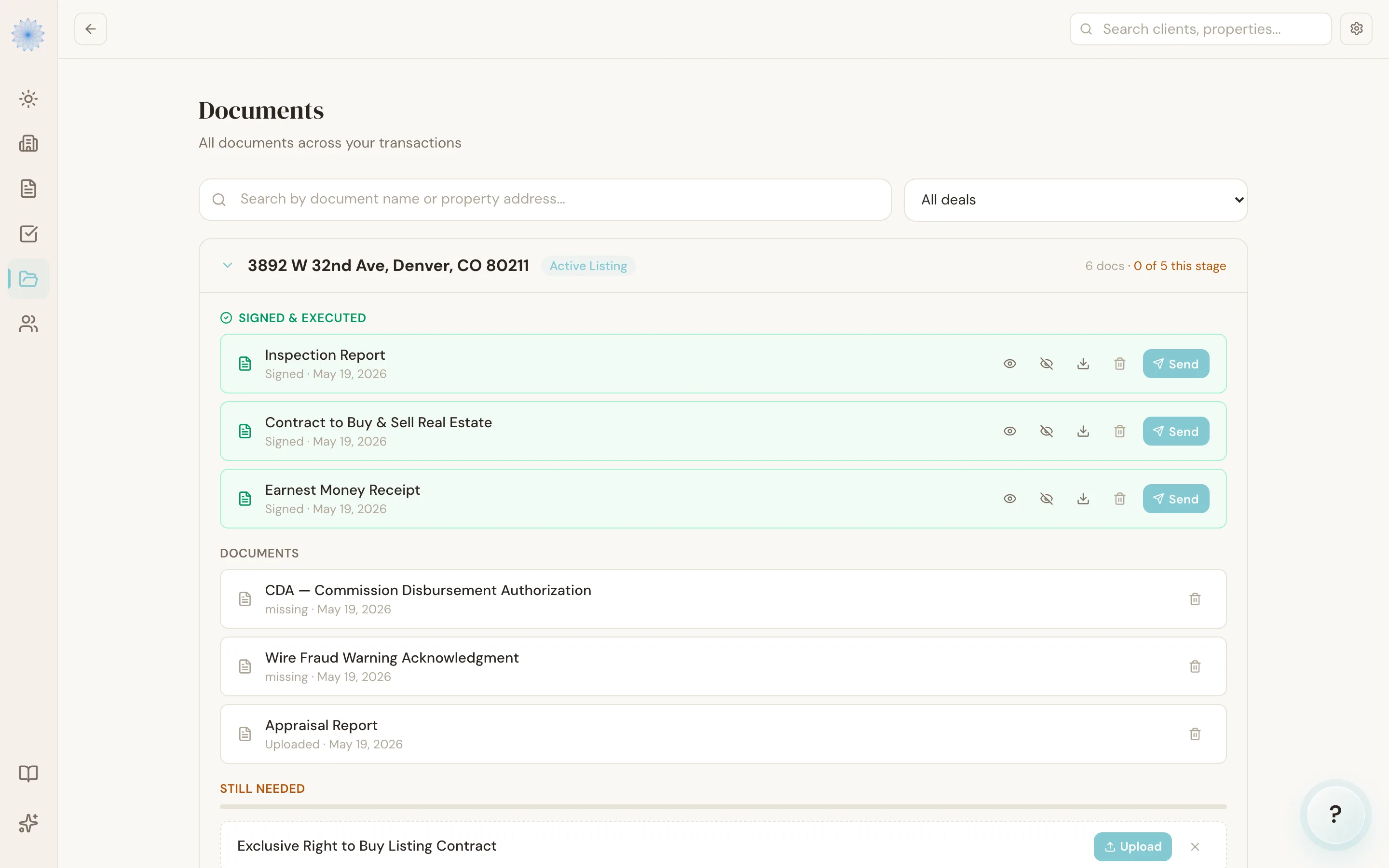
The Documents page collects every file across all your transactions in one place. This article covers how documents get there and how Done-Deal figures out what kind of form each one is.
How documents end up on the Documents page
A document can land on a transaction three ways:
- You upload it from the transaction's document checklist.
- It arrives as an email attachment to your transaction inbox and gets matched to the transaction — see How your transaction inbox works.
- A client signs it through Done-Deal's built-in e-signing. The signed copy and a signature certificate are added to the transaction automatically. See The signing experience.
Open any transaction from the Documents page to see its documents grouped by status — Signed, In progress, and everything else — alongside the checklist of documents Done-Deal still expects for that transaction's stage.
AI document classification
Note: Automatic document classification is part of the AI TC add-on. See Plans and pricing. Without it, uploaded documents still land on the Documents page — you just pick the document type yourself when you upload, and it isn't checked or corrected automatically.
With AI TC active, every document you upload is read by Done-Deal's AI classifier right after upload. It looks at the actual contents of the file and identifies which Colorado form it is — a Contract to Buy and Sell (CBS1), a Seller Property Disclosure (SPD19), an Amend/Extend (AE41), and so on — and checks whether that matches the document type you picked when you uploaded it.
- If the AI is confident and agrees with your pick, nothing changes — the document is simply marked classified in the background.
- If the AI isn't confident, or its read disagrees with what you selected, a Confirm document type? banner appears on that document showing the AI's pick, its confidence percentage, and any close alternatives.
Resolving the banner
You have two options:
- Click Use [form code] to accept the AI's pick — this updates the document's type on your checklist.
- Click Keep current to dismiss the banner and keep the type you originally chose.
Either choice clears the banner. Nothing is renamed automatically — the document keeps the type you assigned at upload until you confirm the AI's suggestion.
Note: Classification only runs on files under 10 MB. Larger files (usually scanned multi-page packets) skip classification and keep the document type you assigned at upload.
The signature scan
With AI TC active, each uploaded document is also checked for missing signatures, initials and signing dates. The result shows on the document's checklist row:
- A green check means the scan found nothing to fix.
- Review needed means it found a gap, such as a named party who has not signed. Click it to see the list.
- Notes are optional items, such as an unused signature block. They never block anything.
- Check by eye marks something the scan could not read for sure, such as a faint or handwritten date on a scanned form. Look at the page yourself.
A handwritten date next to a signature counts as a date. On listing contracts, including the Exclusive Right to Buy, the broker signs under the printed words "Brokerage Firm", and that counts as the broker's signature.
Dismissing a finding that is wrong
The scan can misread a page. If a finding is wrong:
- Click Review needed on the document's row.
- Click Dismiss next to the finding.
- Type a short reason, for example "Broker signed under Brokerage Firm".
- Click Dismiss finding.
The finding moves to a Resolved list with your name, the date and your reason, and it no longer counts as needing review. If the document is scanned again and reports the same finding, it stays resolved. A new upload of the document starts fresh.
When the seller never signs the Affiliated Business Arrangement Disclosure
Your Castle accepts proof that you asked the seller to sign, such as a PDF of the email. If the scan reports a missing seller signature on the Affiliated Business Arrangement Disclosure:
- Click Review needed on the disclosure's row.
- Click Attach request proof next to the missing seller signature.
- Choose the PDF or image that shows the request, and add a note if you like.
- Click Attach proof and resolve.
The proof is saved on the transaction, and the finding moves to Resolved as satisfied by evidence, with your name and a View the request proof link. This option appears only for a missing seller signature on that disclosure.
Sending a document to the other agent
To email a document, click Send (or Send link on a checklist row), pick who gets it, and click Send. The PDF is attached, with a download link.
When you send to the agent on the other side of the transaction, and they have not given you their CTM eContracts (CTM) address for this transaction, the email adds one line: "If you have CTM, one paste files the documents I send you in CTM", with a File into my CTM button. It shows only when:
- the transaction says whether you represent the buyer or the seller, and
- the email address belongs to the other side's agent in the transaction's people.
Your clients, your own team and anyone else never see it. When a transaction coordinator sends and the agent gets a copy, the copy never shows the button. So if the other agent is the only recipient of that send, the button is left out and shows on a later send.
The other agent clicks the button, opens the transaction in CTM, clicks Email Documents to Docs Management, and pastes the green address. They need no Done-Deal account. The document that carried the button is filed into their CTM right away (CTM can take up to 5 minutes). If you sent them more than one document before they pasted, only the first one is filed then; send the others again. From then on, each document you send them is also copied into that transaction in their CTM. The address is saved on this one transaction only.
When the address comes in, a card on your Home says so: "Greg's CTM address is in", and whether the document was filed. If it was not (for example, it is over CTM's 8 MB limit), the card says why. Send it again from Documents and it will go to their CTM. If a transaction coordinator sent the document, the coordinator gets the card too.
A signed offer you sent with Send to the listing agent asks for their CTM address the same way. If your brokerage has it on, that signed offer is filed into their CTM when they paste it, and the card says "The offer was filed into their CTM deal." See Sending a signed offer to the listing agent.
Seeing whether they sent it
Before you click Send, the send screen tells you when the email will ask for their address, with a line under the recipients such as "Greg hasn't shared a CTM address yet. We'll ask them in this email."
On the transaction, open People. Under the parties list, a line for the other side's agent shows where it stands:
- CTM address: asked Nov 12th 3:32 pm, waiting: the email went out and they have not pasted their address yet.
- CTM address: received Nov 12th 3:40 pm: they pasted it through the button.
- CTM address: on file: the address came another way, for example from their reply email.
The times are in your own time zone. With no request out and no address on file, no line shows.
If you already have their address, click Paste it myself next to "waiting". The edit form for that agent opens on the CTM address box. Paste one address ending in @mail2db.ctmecontracts.com and click Save changes. You can also click Edit on the buyer or seller agent at any time. Leave the box empty to remove the address.
Note: CTM takes files up to 8 MB. A larger PDF still goes to the agent by email, and the send screen says it was not copied to their CTM.
Emails to the other side's agent leave out the wire fraud warning. Emails to your clients and everyone else keep it.
FAQ
Does classification change my document automatically?
No. It only changes the document type if you click Use [form code] on the confirmation banner. Otherwise your original choice stands.
Why didn't a document get classified?
The file may be too large (over 10 MB), or classification may still be running — it happens right after upload, not instantly. If the AI TC add-on isn't active on your account, classification doesn't run at all.
What does Done-Deal check for besides the form type?
The classifier also notes which signature blocks appear signed on the page, which is used to help judge its confidence — it isn't a substitute for checking the actual document yourself.
Can I still see a document if the AI got the type wrong and I haven't confirmed it yet?
Yes. The document and its file are available immediately after upload; the confirmation banner is just a heads-up, not a hold on the file.
Who can dismiss a scan finding?
The agent on the transaction, a covering co-agent, a transaction coordinator working the transaction, and the backup broker. Everyone must give a reason, and the reason is saved with their name.
If I upload a new version of a document, does it replace the old one?
No. Each upload is saved as its own file, so earlier versions are never overwritten.
My deal has a second Seller Property Disclosure for another structure. Where does it go?
Upload it to the SPD Additional Structure row in Under Contract Documents. It is one of the optional rows, so click + Show optional documents in that section if you don't see it. That row is separate from the main Seller Property Disclosure, so both files show on the checklist and neither replaces the other. The additional structure disclosure is never counted as missing.
If you drop the file instead, a name that includes "Additional Structure" files it on that row. The classifier also knows the two forms apart and asks you to confirm if one was filed on the other's row.
On deals from before this row existed, the second disclosure was saved as a newer version of the main one, so only one showed. Both files are still stored. To fix the checklist, upload the additional structure disclosure to its new row, then upload the main disclosure again if its row shows the wrong file.
The other agent says they never got the File into my CTM button. Why?
The button shows only when their email address is on the transaction as the other side's agent, the transaction says which side you represent, and no CTM address is on file for them yet. Once they paste their address, the button stops showing and your documents copy into their CTM instead. Under People on the transaction, the "CTM address" line shows whether the request is still waiting or the address came in.
Related articles
Still stuck?
Email support@done-deal.co and a real person will get back to you — usually the same business day.