
Supervised vs. Autonomous modes
Note: This feature is part of the AI TC add-on. See Plans and pricing.
Reme has two autonomy settings — Supervised mode and Autonomous mode — and you set them on each transaction.
Where to set it
Every new transaction starts in Supervised mode. To change one, open the transaction, click Edit, and use the Supervised/Autonomous switch under How Reme works on this deal. It changes that transaction only, so you can run one transaction Autonomous and keep a close eye on a tricky one.
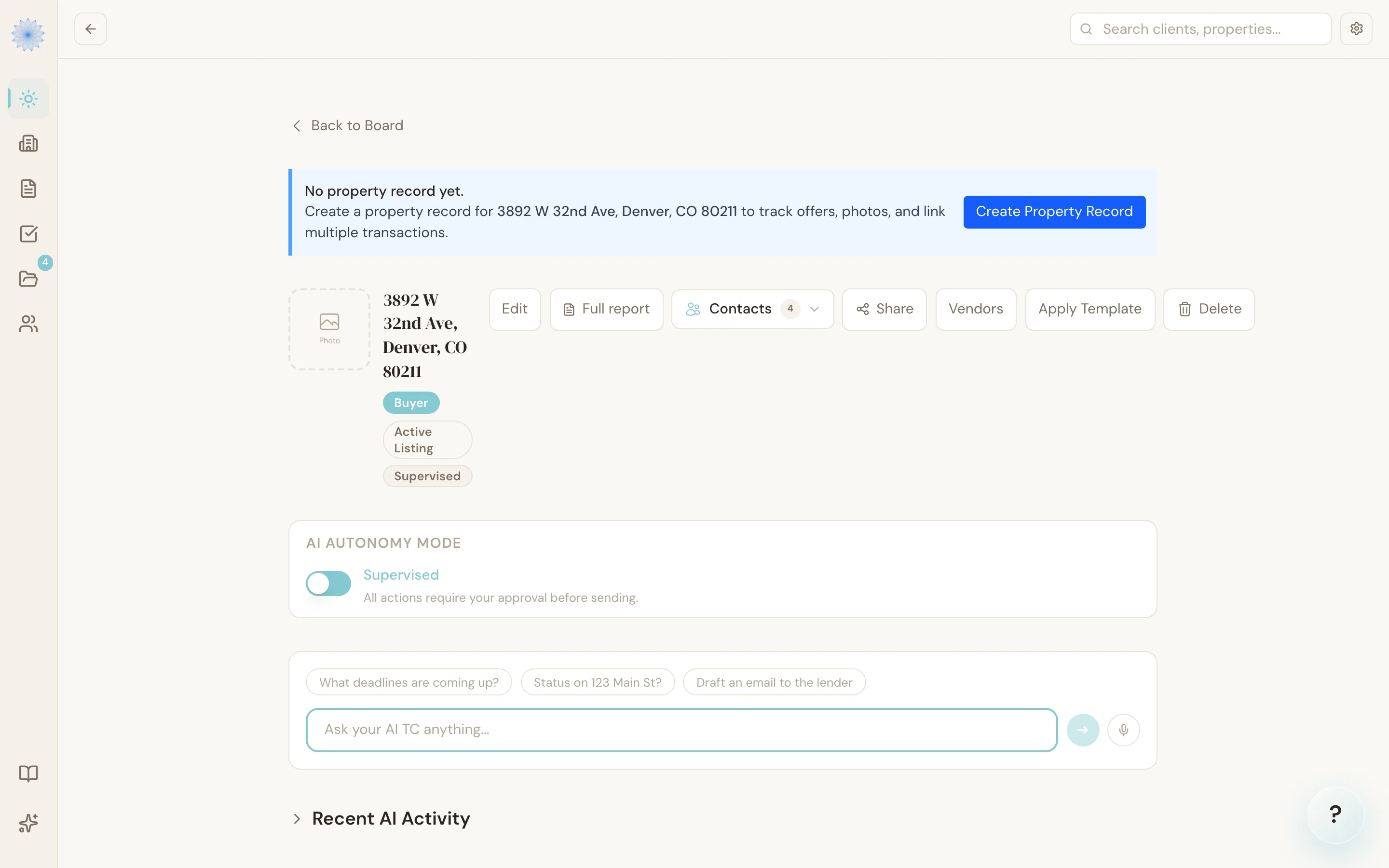
Note: Supervised is the default, and this is enforced in the database, not just the app, so it can't silently drift to Autonomous.
What actually changes between the two modes
This is the part worth being precise about: switching to Autonomous mode does not mean Reme starts acting freely on your transaction. It only changes what happens to LOW-risk actions.
| Supervised (default) | Autonomous | |
|---|---|---|
| LOW risk action (e.g. a routine deadline reminder) | Waits in the Feed for approval | Executes automatically, no approval needed |
| MEDIUM risk action (e.g. a disclosure package) | Waits in the Feed for approval | Waits in the Feed for approval |
| HIGH risk action (e.g. an inspection objection, a CDA) | Waits in the Feed for approval | Waits in the Feed for approval |
In other words, Autonomous mode only removes the approval step for the lowest tier of routine communications — things like check-ins, calendar adds, and the daily digest. Anything with legal or financial weight always lands in the Feed first, no matter which mode a transaction is in. See Risk levels and approvals for exactly how Reme decides which tier an action falls into.
Warning: In Autonomous mode, low-risk emails go out without you reading them first. Only turn it on for a transaction if you're comfortable with routine communications leaving your name without a final look.
FAQ
Can I make every new transaction start in Autonomous mode?
No. Every new transaction starts in Supervised mode. Switch each one you want to run Autonomous on its own Edit page.
Can I turn a transaction back to Supervised after switching it to Autonomous?
Yes, any time. Open the transaction's Edit page and flip the toggle back — it takes effect immediately for any action Reme queues after that point.
Does Autonomous mode affect the Feed at all?
Yes — you'll simply see fewer items in it. Low-risk actions that would have appeared for approval are executed and logged instead; everything medium-risk or higher still shows up exactly as it does in Supervised mode.
Does Autonomous mode change how Reme drafts things, or just whether it waits for approval?
Just whether it waits. The content of what Reme drafts — the wording of an email, the details of a reminder — is the same in both modes. Autonomous mode only skips the approval step for low-risk items.
Related articles
Still stuck?
Email support@done-deal.co and a real person will get back to you — usually the same business day.